In this article
Microsoft Teams
Choose Microsoft Teams as a booking location when you want every guest to receive their own Teams meeting link. Once your Microsoft account is connected, Dlopo creates the meeting automatically after a booking is confirmed.
What You’ll Need
You need:
- a Dlopo Pro plan;
- a Microsoft work or school account;
- a Microsoft 365 account that can create Teams meetings;
- permission to approve the Microsoft connection.
Your organization may ask an administrator to approve the connection before you can use it.
Connect Microsoft Teams
- Open Integrations.
- Select Microsoft Teams.
- Select Connect.
- Choose the Microsoft account you want to use.
- Review and approve Microsoft’s request.
- Return to Dlopo and check that Teams shows Connected.
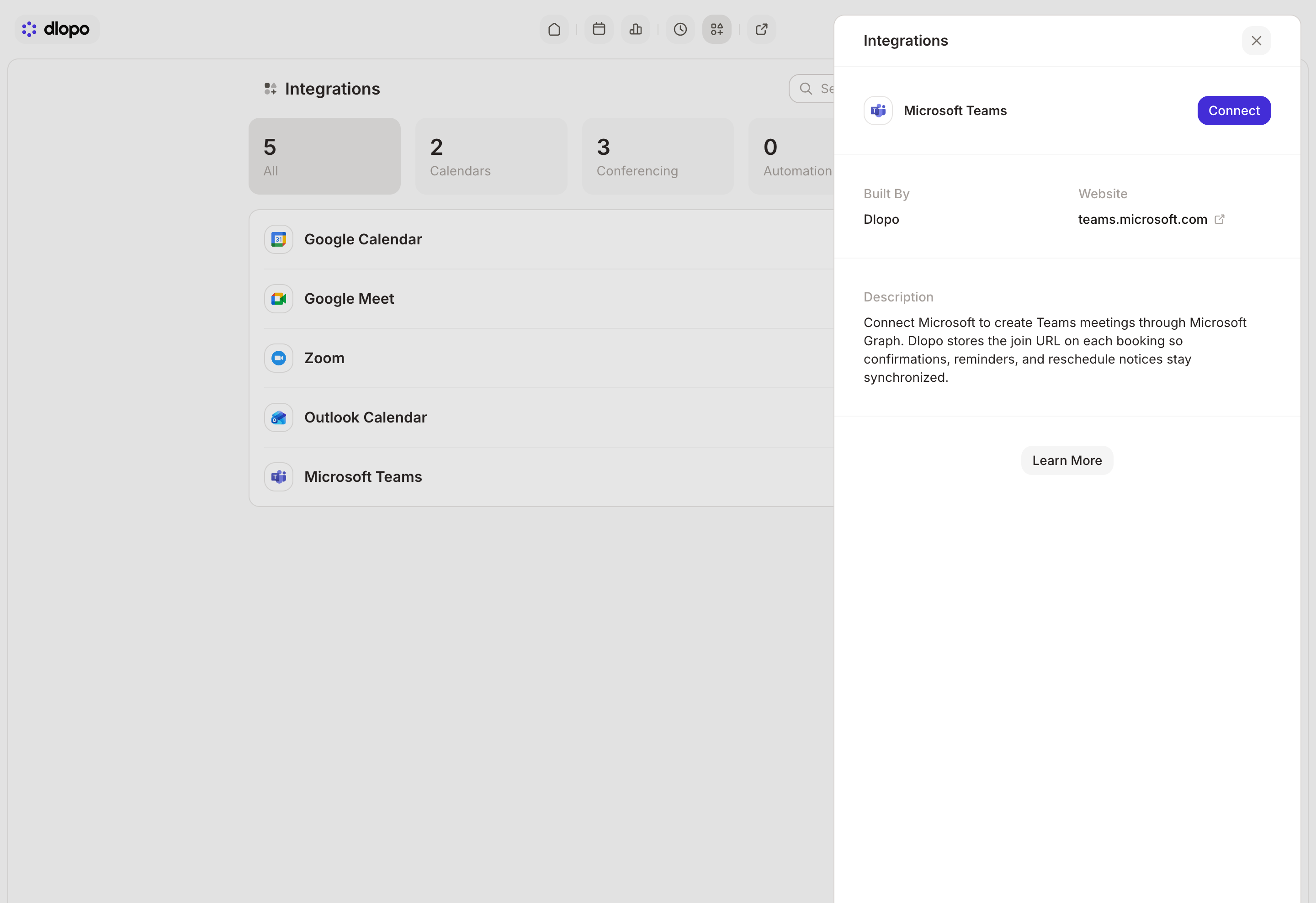
The account you connect will own the Teams meetings created for your bookings.
Add Teams to a Booking Link
- Open Links and select the booking link you want to update.
- Open Settings, then Location.
- Select Microsoft Teams.
- Select Save Changes.
Guests will see Microsoft Teams as the meeting type before they book. The private join link is created only after the booking is confirmed.
What Happens When Someone Books
Dlopo creates a new Teams meeting for the selected time and saves the join URL as the booking’s Where value. Every booking gets its own meeting rather than sharing a permanent room.
Hosts and guests can find the link in:
- booking details in Dlopo;
- confirmation emails;
- reschedule and reminder emails;
- the Outlook Calendar event, if Outlook writeback is connected.
If Microsoft cannot create the meeting, the booking will not be completed and the selected time will become available again. This can happen when the connection has expired, the account is missing a permission, or a Microsoft policy prevents online meetings.
Rescheduling and Cancelling
When a guest reschedules, Dlopo creates a replacement booking and a new Teams meeting. Use the link from the latest confirmation.
The previous Teams meeting is not deleted automatically. Cancelling a booking in Dlopo also leaves its Teams meeting in Microsoft, so remove the old meeting there if you do not want it to remain available.
Teams and Outlook Calendar Use the Same Connection
Microsoft Teams and Outlook Calendar share one Microsoft connection in Dlopo. Connecting Teams also asks for calendar access, which means Outlook Calendar may show as connected too.
Open Outlook Calendar in Integrations if you want to choose:
- which calendars should block your availability;
- where new booking events should be created;
- what should happen to an Outlook event after cancellation.
Disconnecting either Microsoft integration removes the shared connection, so both Teams and Outlook Calendar will be disconnected. Meetings and calendar events that were already created will remain in Microsoft.
If Teams Is Not Working
Try these checks in order:
- Confirm that your Dlopo account is on Pro.
- Make sure you connected a Microsoft work or school account.
- Try creating a Teams meeting directly in Microsoft Teams or Outlook.
- Reconnect Microsoft Teams from Integrations and approve the requested access.
- Open the booking link, select Microsoft Teams under Location, and select Save Changes.
- Make a test booking.
If you can sign in but Dlopo still cannot create a meeting, your Microsoft 365 administrator may need to allow the app, grant online-meeting access, or change the meeting policy for your account.
If you connected Outlook Calendar first, connect Microsoft Teams as well. This adds the extra permission needed to create online meetings.