In this article
Outlook Calendar
Connect Outlook Calendar to keep busy times off your booking pages and add confirmed bookings to the calendar you already use. You can decide which calendars Dlopo checks, where new events go, and how cancelled bookings should appear.
You’ll need a Microsoft account with Outlook Calendar, at least one calendar, and permission to edit the calendar where new booking events will be created. Outlook Calendar is available on Dlopo Free and Pro plans.
Connect Outlook Calendar
- Open Integrations.
- Find Outlook Calendar under All or Calendars.
- Open it and select Connect.
- Choose the Microsoft account you want to use.
- Review and approve Microsoft’s request.
- Return to Dlopo and check that Outlook Calendar shows Connected.
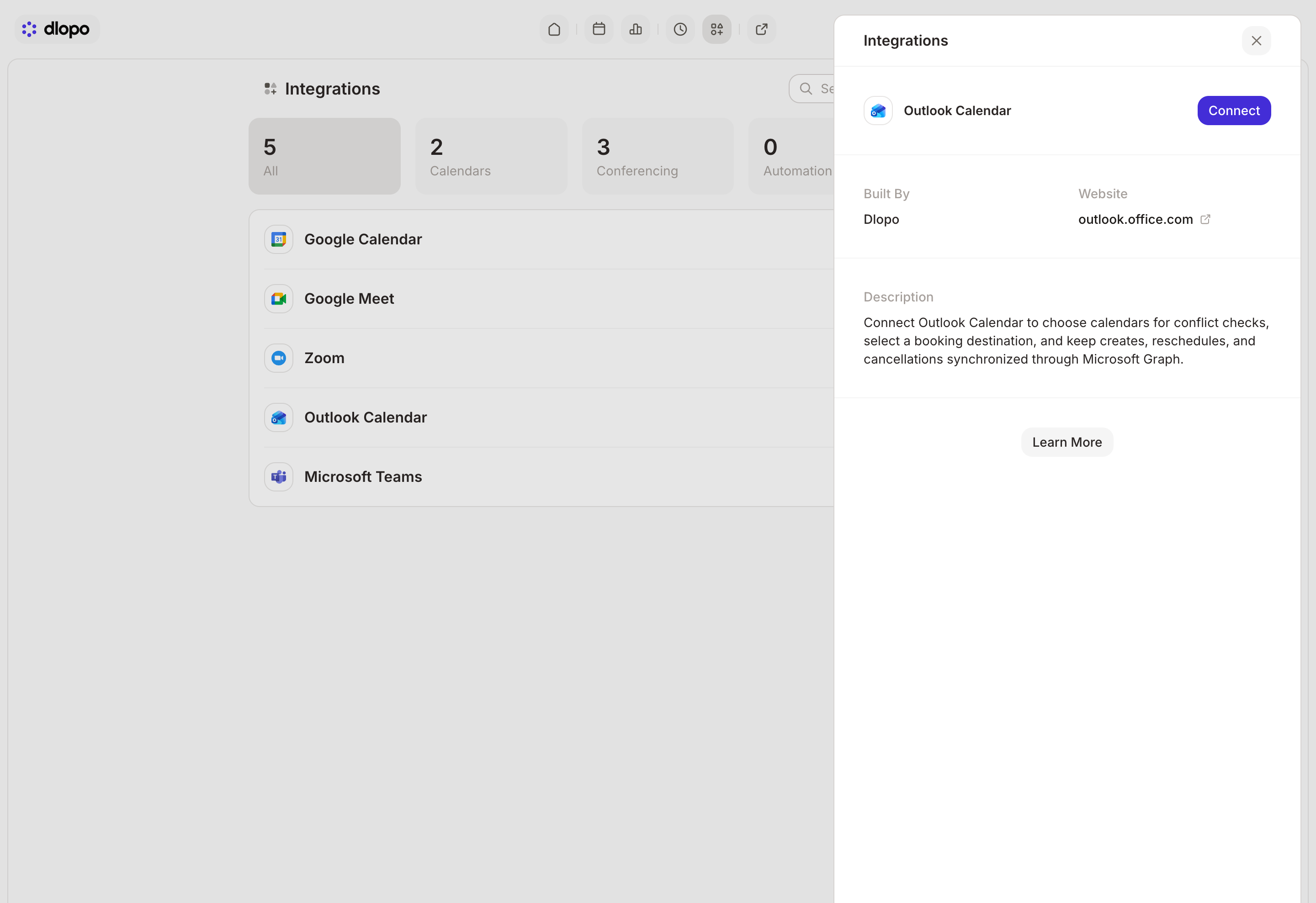
Dlopo asks for access to your basic Microsoft account details and calendars. It also keeps the authorization refreshed so bookings can continue syncing without asking you to sign in each time.
Connecting Outlook Calendar does not enable Microsoft Teams meetings. Teams needs an additional permission.
Choose How Your Calendars Work With Dlopo
Open Outlook Calendar in Integrations. You will see three settings:
- Calendars to Check controls which calendars can block a time on your booking pages. Select at least one.
- Destination Calendar is where new booking events will be created. You can only choose a calendar you are allowed to edit.
- When a Booking Is Cancelled lets you delete the Outlook event or keep it marked as cancelled.
Select Save Settings when you are done.
If you keep cancelled events, the title will start with “Cancelled:”. The event will be marked as free and its reminder will be turned off.
How Busy-Time Checks Work
Dlopo checks the calendars you selected before showing or accepting a time. A busy event on any of them can remove that time from your booking page.
Events marked free do not block time, and neither do cancelled events. Booking buffers count too, so a calendar event that overlaps the buffer before or after a meeting can make the slot unavailable.
If Dlopo cannot check Outlook because the connection has expired or Microsoft is unavailable, it will avoid offering the time rather than risk a double booking.
What Happens When Someone Books
After a booking is confirmed, an event is created in your Destination Calendar. It includes the booking title, start and end time, and the meeting location or join link.
Guest notes may be added to the event description. Turn on Hide Notes in Calendar in the booking link settings if you do not want those notes sent to Outlook.
If Outlook cannot create the event, the booking will not be completed and the time will be released. This keeps your Dlopo bookings and destination calendar from quietly falling out of sync.
Rescheduling and Cancelling
When a guest reschedules, Dlopo updates the existing Outlook event with the new time and details. You will not get a second event for the same booking.
When a host or guest cancels an upcoming booking, Dlopo follows the option you selected:
- Delete the Outlook event removes it from the calendar.
- Keep it marked as cancelled leaves it visible but frees the time.
If Outlook cannot be updated, the booking stays active and Dlopo shows an error. You can then reconnect the account or correct the calendar settings before trying again.
Outlook Calendar and Teams Share a Microsoft Connection
Outlook Calendar and Microsoft Teams use the same Microsoft account connection in Dlopo. Connecting Teams can add permission to create online meetings. Connecting Outlook Calendar by itself does not.
Disconnecting either one removes the shared connection, so both integrations will be disconnected. Existing Outlook events, Teams meetings, and Dlopo bookings are not deleted.
If Outlook Calendar Is Not Syncing
Work through these checks:
- Make sure the connected Microsoft account can open Outlook Calendar.
- Open the integration and select at least one Calendar to Check.
- Choose a Destination Calendar you can edit.
- Select Save Settings.
- Reconnect Outlook Calendar if the calendars do not load or the account has changed.
- Make a test booking and look for the event in the destination calendar.
If your organization manages Microsoft access, an administrator may need to approve the connection or allow calendar access. Short Microsoft service interruptions are retried automatically, but you may need to try again once Microsoft has recovered.