In this article
Google Calendar
Google Calendar works together with Google Meet in Dlopo. Once connected, it can create the calendar event and video link for bookings that use Google Meet as their location.
Google Calendar and Google Meet share one connection, so you only need to authorize your Google account once.
You’ll need a Google account with access to Google Calendar. If you also want to use Google Meet, make sure the same account can create Meet conferences. Both integrations are available on Dlopo Free and Pro plans.
Connect Google Calendar
- Open Integrations.
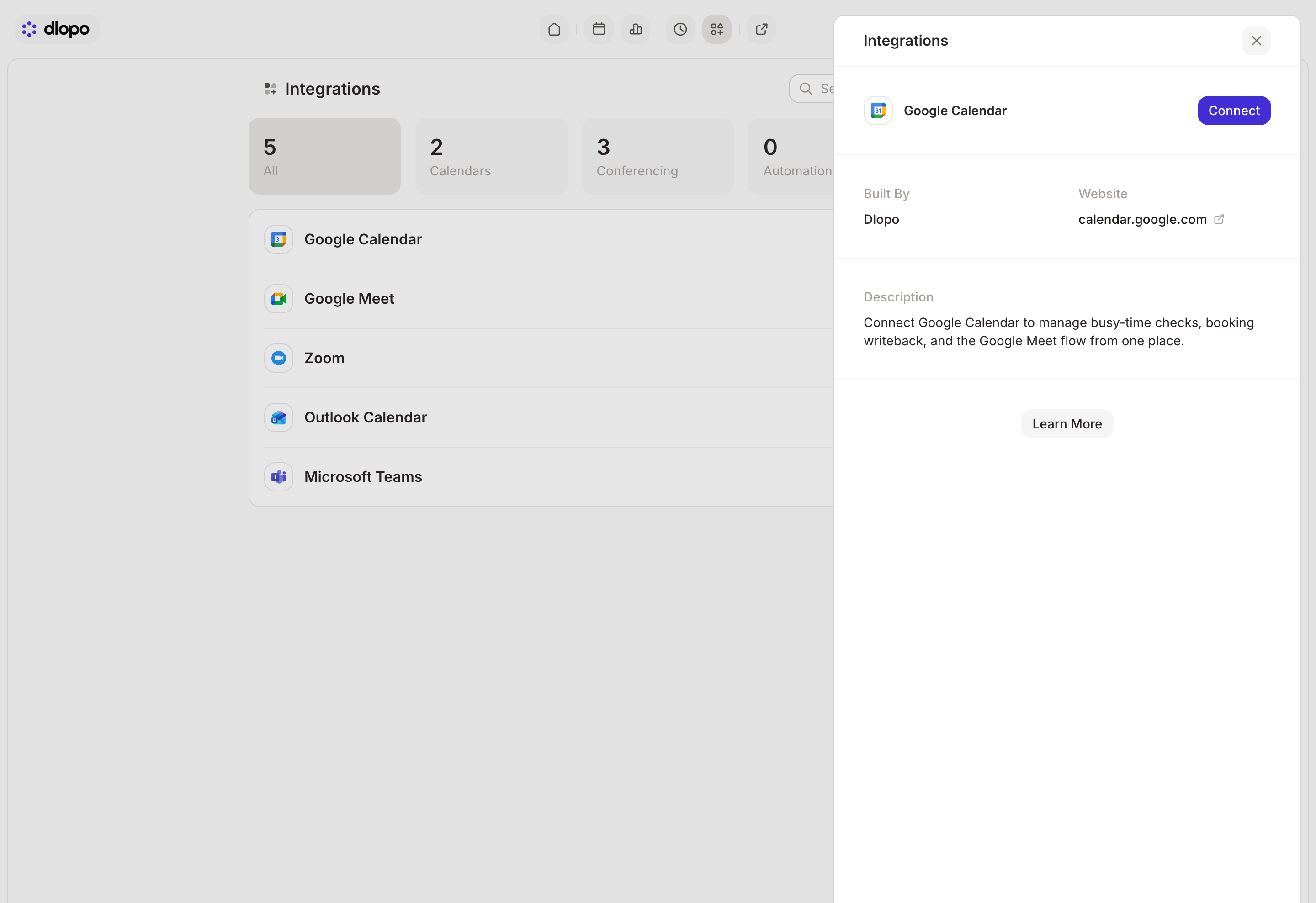
- Find Google Calendar under All or Calendars.
- Open it and select Connect.
- Choose the Google account you want to use.
- Review and approve Google’s request.
- Return to Dlopo and check that the integration shows Connected.
Dlopo shows the connected email address so you can quickly check which account is in use.
What the Connection Is Used For
Dlopo asks for permission to create and manage the calendar events used by the integration. It also reads the connected account’s email address and keeps the authorization refreshed in the background.
When someone books a link whose Location is Google Meet, a new event is created on the connected account’s primary calendar. The event contains the booking title, time, and Meet link.
Guest notes may also appear in the event description. If you would rather keep them out of Google Calendar, turn on Hide Notes in Calendar in the booking link settings.
At the moment, Google events are always written to the primary calendar. There is no option to choose a different destination calendar.
A Note About Availability
Connecting Google Calendar does not make your Google events block time in Dlopo. Your available times still come from:
- the schedule and date overrides assigned to the booking link;
- the meeting length and buffers;
- minimum notice and booking window settings;
- the daily booking limit;
- your existing Dlopo bookings.
If a Google Calendar appointment should make you unavailable, update your schedule or add a date override in Dlopo.
If you want Dlopo to check external calendars for busy events automatically, Outlook Calendar currently supports that workflow.
What Happens After a Reschedule or Cancellation
Rescheduling a Google Meet booking creates a new booking, a new calendar event, and a new Meet link. The earlier Google event is not updated or removed.
Cancelling in Dlopo frees the time in Dlopo, but it does not delete the event from Google Calendar. Remove the old event manually if you no longer want it there.
Reconnect or Disconnect
Reconnect Google Calendar if the wrong account is connected, Google access was revoked, or Meet links stop being created:
- Open Integrations, then Google Calendar.
- Select Connect or Edit Connection.
- Choose the right Google account and approve access.
- Make a test booking using Google Meet as the location.
If the test still fails, try creating a Calendar event with a Meet link directly in Google. For a managed Workspace account, your administrator may need to review app-access or conference-creation policies.
Disconnecting Google Calendar also disconnects Google Meet. It removes Dlopo’s access, but it does not delete events or Meet rooms that already exist.