In this article
Google Meet
Google Meet is a simple choice when you want every booking to have its own video call. Connect your Google account once, choose Google Meet as the location, and Dlopo will create a fresh Meet link whenever someone books.
You’ll need a Google account that can use Google Calendar and Google Meet. Google Calendar must be connected to Dlopo before you can add Meet to a booking link. Both integrations are available on Free and Pro plans.
Connect Your Google Account
Google Meet uses the same connection as Google Calendar, so there is no separate Meet sign-in.
- Open Integrations.
- Select Google Calendar or Google Meet.
- Select Connect.
- Choose the Google account you want to use.
- Approve the access requested by Google.
- Return to Dlopo and check that the integration shows Connected.
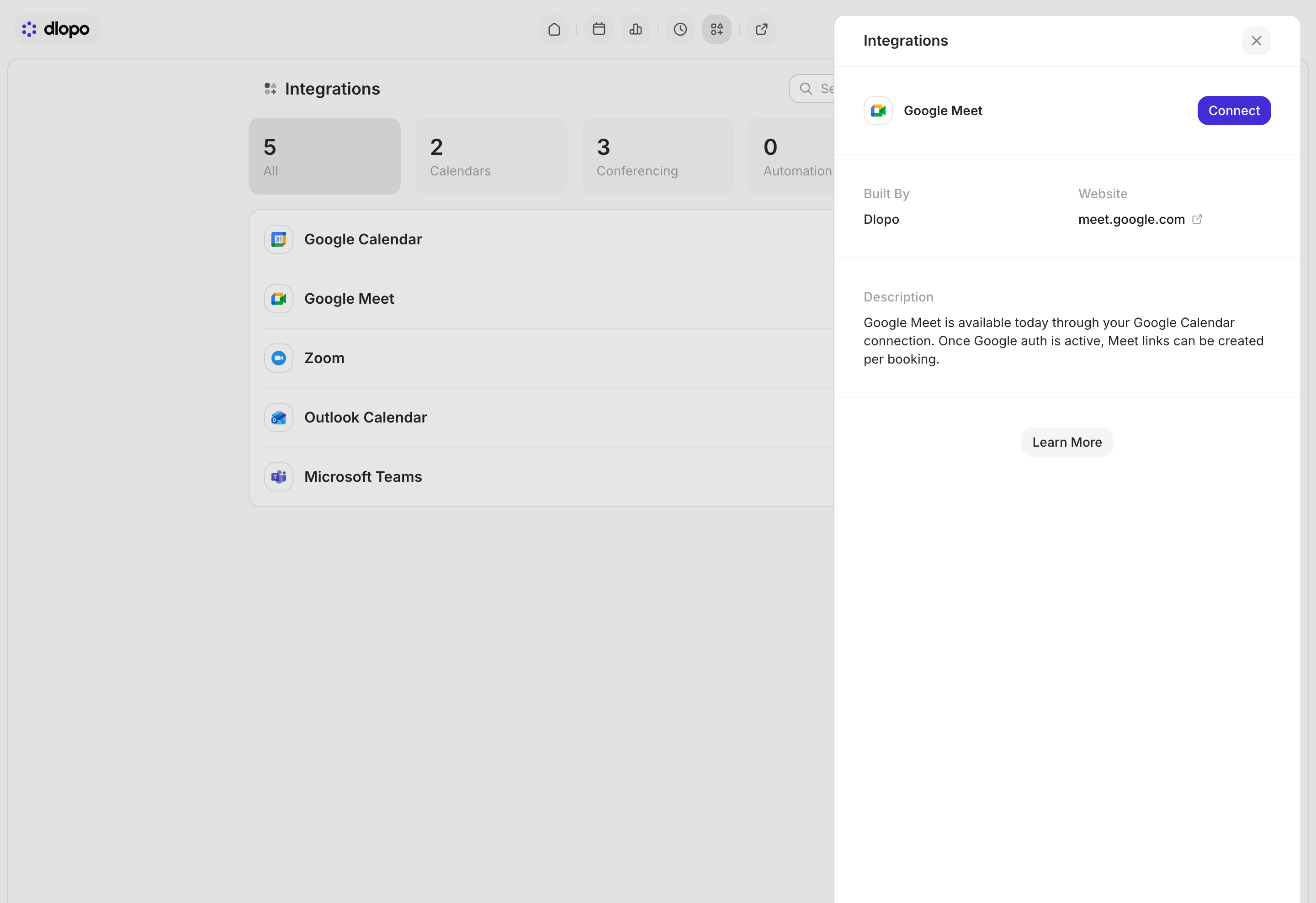
The account you connect will own the calendar events and Meet rooms created for your bookings.
Choose Google Meet as the Location
- Open Links and select the booking link you want to update.
- Open Settings, then Location.
- Select Google Meet.
- Check that the right Google account is shown.
- Select Save Changes.
Guests will see that the meeting takes place on Google Meet, but the actual join link stays private until they finish booking.
What Happens When Someone Books
Once a booking is confirmed, Dlopo creates an event on your primary Google Calendar and asks Google to add a new Meet room. That Meet link is saved with the booking and used as its Where value.
Each booking gets a different link. There is no permanent room to manage or copy between bookings.
The link appears in the places you would expect:
- your booking details in Dlopo;
- confirmation and reschedule emails;
- reminder emails;
- the Google Calendar event.
If Google cannot create the event or return a Meet link, the booking will not go through and the time will become available again. This prevents guests from receiving a confirmation with nowhere to join.
Rescheduling and Cancelling
A rescheduled booking gets a new Google Calendar event and a new Meet link. Use the link in the latest confirmation.
The earlier Google event and Meet room are not removed automatically. The same is true when a booking is cancelled in Dlopo, so you may want to remove the old event from Google Calendar yourself.
If Google Meet Is Not Working
Start by reconnecting Google Calendar:
- Open Integrations.
- Open Google Calendar and reconnect the account you want to use.
- Check that the account can create a Calendar event with a Meet link directly in Google.
- Return to the booking link and confirm that Google Meet is still selected under Location.
- Select Save Changes and make a test booking.
If you use a managed Google Workspace account, your administrator may need to allow third-party app access or Meet conference creation.
You can stop using Meet without disconnecting Google. Simply choose another Location on the booking link. If you disconnect Google Calendar completely, Google Meet will be disconnected too. Existing events and Meet links will remain in Google.