In this article
Zoom
Connect Zoom to give every confirmed booking its own meeting link. Choose Zoom as the location once, and Dlopo will create and manage the meeting as guests book, reschedule, or cancel.
To set it up, you’ll need a Zoom account that can schedule meetings and permission to approve the connection.
Connect Zoom
- Open Integrations.
- Select Zoom.
- Select Connect.
- Sign in to the Zoom account you want to use.
- Review and approve Zoom’s request.
- Return to Dlopo and check that Zoom shows Connected.
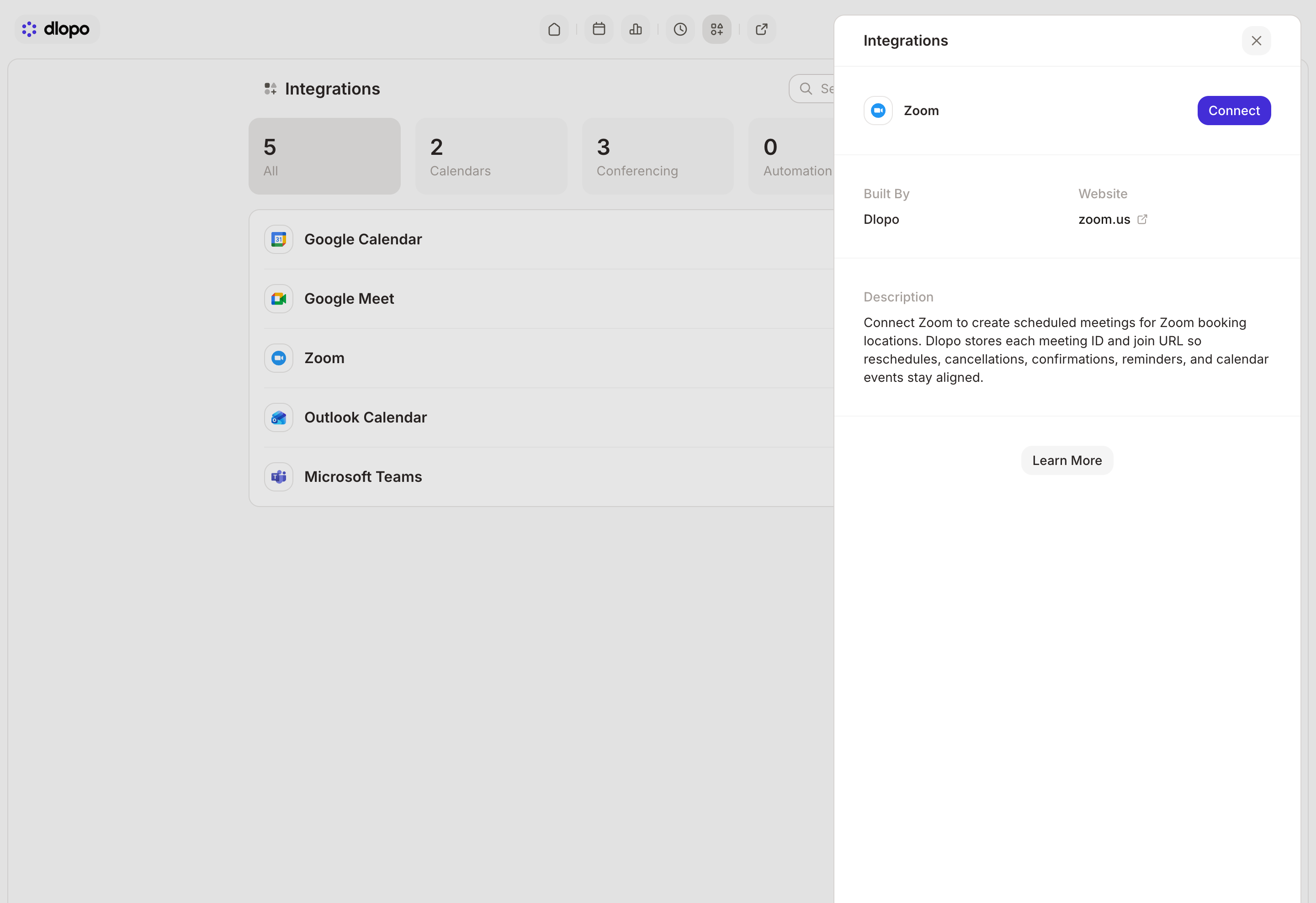
The account you connect will host the meetings created through Dlopo. If you chose the wrong one, open Zoom in Integrations, select Edit Connection, and connect again.
Add Zoom to a Booking Link
- Open Links and select the booking link you want to update.
- Open Settings, then Location.
- Select Zoom.
- Select Save Changes.
Guests will see Zoom as the meeting type on the booking page. The private join link is created only after they finish booking.
What Happens When Someone Books
Dlopo creates a scheduled Zoom meeting for the selected time and saves its join URL as the booking’s Where value. Each booking gets its own meeting.
The meeting starts with the waiting room enabled, and guests cannot join before the host. If Hide Notes in Calendar is turned off, guest notes may be added to the Zoom meeting agenda.
Hosts and guests can find the join link in:
- booking details in Dlopo;
- confirmation emails;
- reschedule and reminder emails;
- the Outlook Calendar event, if Outlook writeback is connected.
If Zoom cannot create the meeting, the booking will not be completed and the time will become available again. This prevents someone from receiving a confirmation without a working join link.
Rescheduling and Cancelling
When a guest reschedules through Dlopo, the existing Zoom meeting moves to the new time. Its meeting ID and join URL stay the same, so there is no new link to keep track of.
When a host or guest cancels an upcoming booking, Dlopo deletes the Zoom meeting before cancelling the booking. If Zoom cannot be reached, the booking remains active and Dlopo shows an error instead of leaving the two systems out of sync.
Disconnect Zoom
- Open Integrations.
- Open Zoom.
- Select Disconnect.
- Confirm the change.
Dlopo removes the saved connection and asks Zoom to revoke access. Meetings that were already created are not deleted, and links already sent in emails will not change.
Before accepting more bookings, reconnect Zoom or choose a different Location on any link that still uses it.
If Zoom Is Not Working
Try these checks:
- Make sure the connected Zoom account can create a meeting directly in Zoom.
- Open Integrations, select Zoom, then select Edit Connection.
- Sign in with the intended account and approve the requested access.
- Check that Zoom now shows Connected.
- Open the affected booking link and confirm that Zoom is selected under Location.
- Select Save Changes and make a test booking.
If you use an organization-managed Zoom account, an administrator may need to allow the connection. Reconnecting is usually the right fix for expired or revoked access. If Zoom is temporarily unavailable or rate-limiting requests, try the booking again once the service has recovered.
A failed Zoom booking does not keep the selected time reserved.